How to Set Up Dual Monitors Without Wrecking Your Neck
Side-by-side or primary-plus-secondary? Screen placement decides whether two monitors help or hurt.
Key takeaways
- If you use both screens equally, center the seam in front of you.
- If one is primary, center it and angle the second inward.
- Both screens must sit at identical heights.
This article contains affiliate links. If you purchase through our links, The Chic Workspace may earn a commission at no additional cost to you. As an Amazon Associate I earn from qualifying purchases. We only recommend products we believe are useful for creating a beautiful, functional workspace. Read our affiliate disclosure.
Choose your layout
Equal use means centering the gap between screens on your body and angling both slightly inward into a shallow V. Primary-plus-secondary means centering the main screen and placing the second at your dominant side. Equal use means centering the gap between screens on your body and angling both slightly inward into a shallow V. Primary-plus-secondary means centering the main screen and placing the second at your dominant side. Think about how you actually work throughout the day before deciding which setup is best. If you spend most of your time in a single application, keep that monitor directly in front of you to reduce neck strain. For workflows that require constant comparison—such as coding, design, or spreadsheets—an equal-use setup keeps both displays within a comfortable viewing angle and minimizes unnecessary head movement.
Match the heights exactly
Mismatched heights cause a constant micro head-tilt. A dual monitor arm is the simplest way to get them perfectly level. Ideally, the top edge of both monitors should sit at or just below eye level so your neck remains in a neutral position. Even a difference of an inch or two can lead to fatigue after several hours of work. Once your monitors are aligned, you'll naturally shift your gaze with your eyes rather than your entire head, making long work sessions much more comfortable.
Tame the cables
Route both display cables and power through the arm channel, then use a single under-desk tray. It's the difference between a tidy desk and a spaghetti shelf.
Buying guide
Our Top Picks
Best Organization
gianotter Monitor Stand Riser with Drawer & Pen Holders- Best for
- Keeping a clean, organized desk with everything within reach
- Size
- Approx. 15.7" W x 9.8" D x 5.5" H
- Key feature
- Two-tier riser with built-in drawer and pen holders
- Price
- $29.99
- Score
- 4.7/5
- Single Computer Monitor Stand with Cable Management
- Best for
- Home-office users with a single monitor who want to free up desk space and improve screen positioning.
- Size
- Key feature
- Frees up desk space
- Price
- $30.23
- Score
- 4.4/5
- Dual Monitor Stand
- Best for
- Home-office users, multitaskers, and gamers who want a cleaner desk and more flexible dual-monitor setup.
- Size
- Key feature
- Frees up valuable desk space
- Price
- $59.99
- Score
- 4.6/5

Best Organization
gianotter Monitor Stand Riser with Drawer & Pen Holders
gianotter
Best for: Keeping a clean, organized desk with everything within reach
A two-tier metal monitor riser with a sliding drawer and side pen holders — it lifts your screen to eye level and hides desk clutter in one move.
Key features
- Raises monitor to comfortable eye level
- Sliding drawer for hidden storage
- Two side pen holders
- Sturdy metal frame, tool-free assembly
- Tiers
- 2
- Storage
- Sliding drawer + two side pen holders
- Assembly
- Tool-free
- Material
- Metal frame
Pros
- Two-tier storage with sliding drawer keeps desk clutter out of sight
- Side pen holders keep tools within reach
- Raises your monitor to a comfortable eye level
Cons
- Drawer is shallow — best for slim items
Our scoring
4.7/5- Value
- 4.7
- Storage
- 4.8
- Sturdiness
- 4.6

Single Computer Monitor Stand with Cable Management
Amazon
Best for: Home-office users with a single monitor who want to free up desk space and improve screen positioning.
Home-office users with a single monitor who want to free up desk space and improve screen positioning.
Key features
- Frees up desk space
- Adjustable viewing position
- Sturdy and practical design
- Adjustable height
- Single-monitor design
- Desk clamp installation
- VESA-compatible mounting
- Tilt and swivel functionality
- Helps create a cleaner, more organized workspace
Pros
- Frees up desk space
- Adjustable viewing position
- Sturdy and practical design
Cons
- Only supports one monitor
- Requires a compatible VESA mount
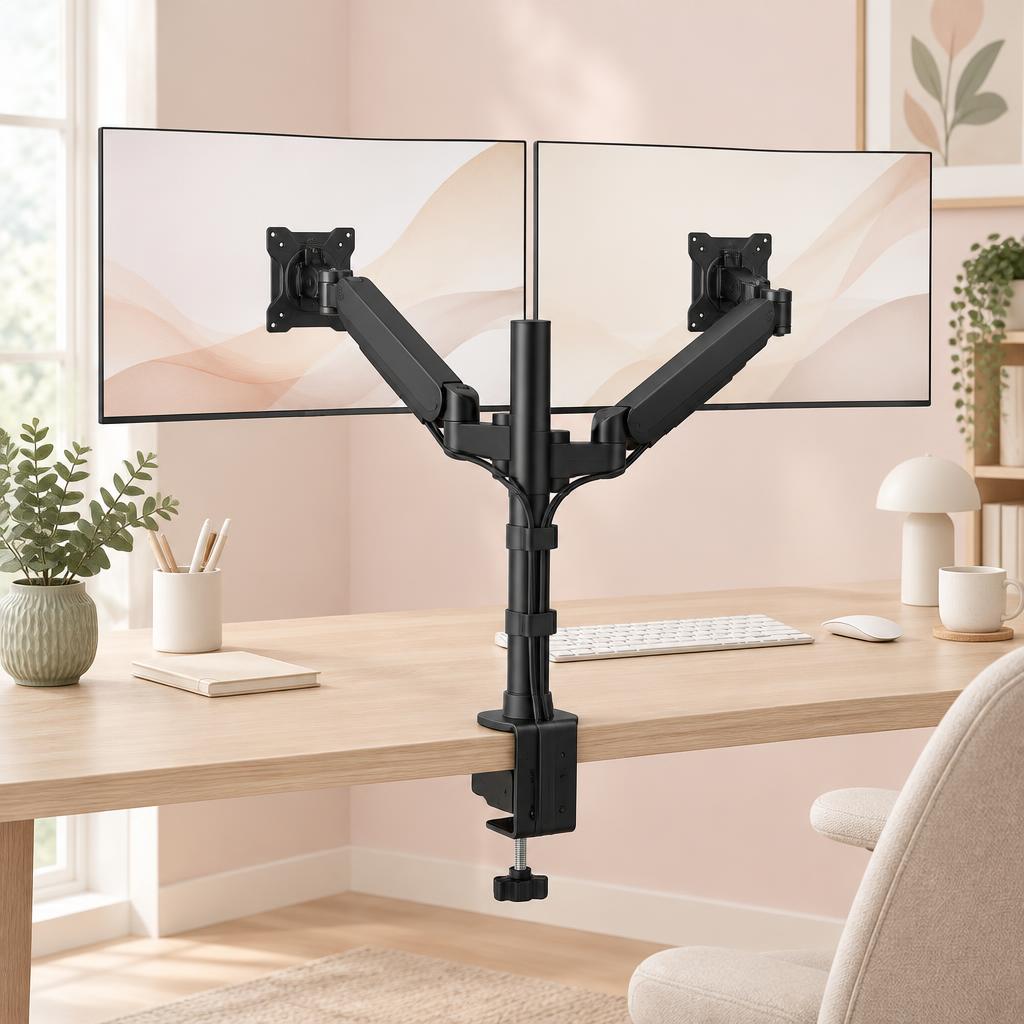
Dual Monitor Stand
HUANUO
Best for: Home-office users, multitaskers, and gamers who want a cleaner desk and more flexible dual-monitor setup.
Home-office users, multitaskers, and gamers who want a cleaner desk and more flexible dual-monitor setup.
Key features
- Frees up valuable desk space
- Fully adjustable viewing angles
- Supports two monitors
- VESA
- 75 × 75 mm and 100 × 100 mm
- Arm reach
- approximately 19.7"
- Fits monitors
- 13"–32"
- Weight capacity
- up to 17.6 lb per arm
Pros
- Frees up valuable desk space
- Fully adjustable viewing angles
- Supports two monitors
Cons
- Requires a sturdy desk
- Cable management can take some setup
Products mentioned
| Product | Rating | Best for | Price |
|---|---|---|---|
| gianotter Monitor Stand Riser with Drawer & Pen Holders | 4.7 | Keeping a clean, organized desk with everything within reach | $29.99 |
| Single Computer Monitor Stand with Cable Management | 4.4 | Home-office users with a single monitor who want to free up desk space and improve screen positioning. | $30.23 |
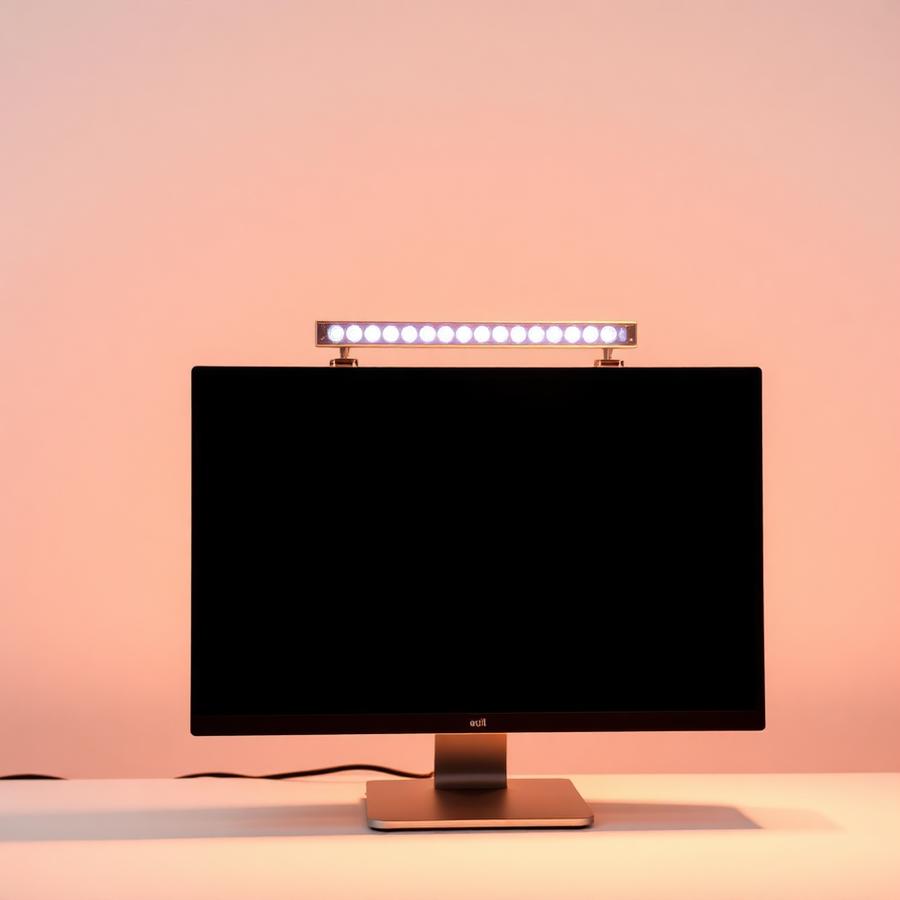 Curved Monitor Light Bar with RGB Backlight Curved Monitor Light Bar with RGB Backlight | 4.7 | Large ultrawide curved monitors and glare-free late-night work | $59 |
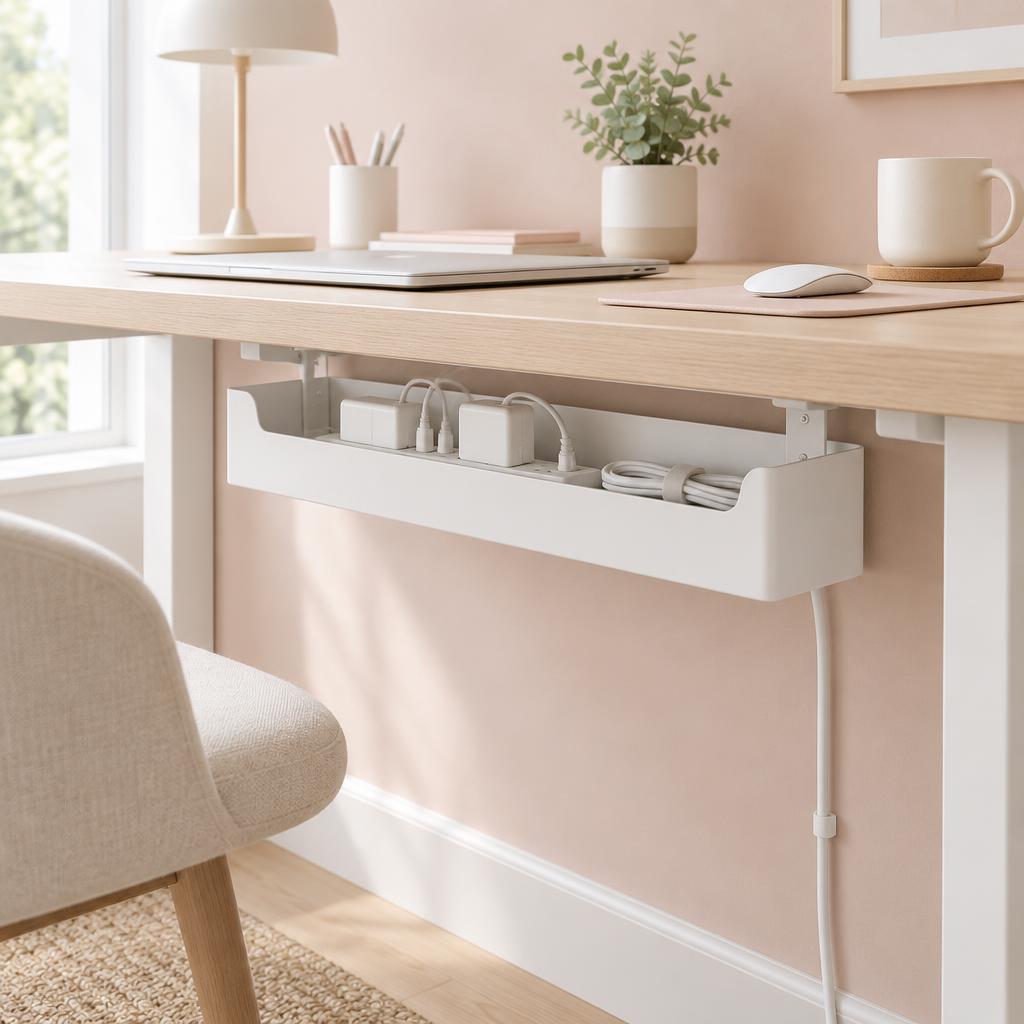 Under Desk Cable Management Box Under Desk Cable Management Box | 4.8 | Home offices with multiple cords, power strips, and chargers that need to be neatly hidden and organized. | $20.74 |
Frequently asked questions
Should both monitors be straight in front of me?
Only if you use both equally — then centre the seam between them. If one is your main screen, put it dead centre and angle the second one in toward you.
How high should dual monitors sit?
Both tops at roughly eye level, matched to each other. Mismatched heights are the most common cause of neck ache in a two-screen setup.
Do I need two arms or one dual stand?
A dual stand is tidier and cheaper; two separate arms give you more freedom to angle each screen and are steadier with large panels.
Can I mix different-sized monitors?
Yes, as long as you match the top edges rather than the bottoms. Adjustable risers or arms make this straightforward.
How far away should the screens be?
About an arm's length from your eyes for a 24-inch screen, slightly further for 27 inches. If you lean in to read, increase the text size rather than moving the desk.
Is a single ultrawide better than two monitors?
An ultrawide removes the bezel in the middle and needs only one cable, but two screens are easier to arrange for a video call plus notes. Desk depth often decides it.
Save for later
How to Set Up Dual Monitors Without Wrecking Your Neck
The Chic Workspace
Pin this article
Written by
Isabelle Marchetti
Isabelle is a certified ergonomics enthusiast and interior-obsessed remote worker. She has tested more than 80 desks, chairs, and accessories so you can build a workspace that is as kind to your body as it is to your eyes.
More about Isabelle →Keep reading
You may also like
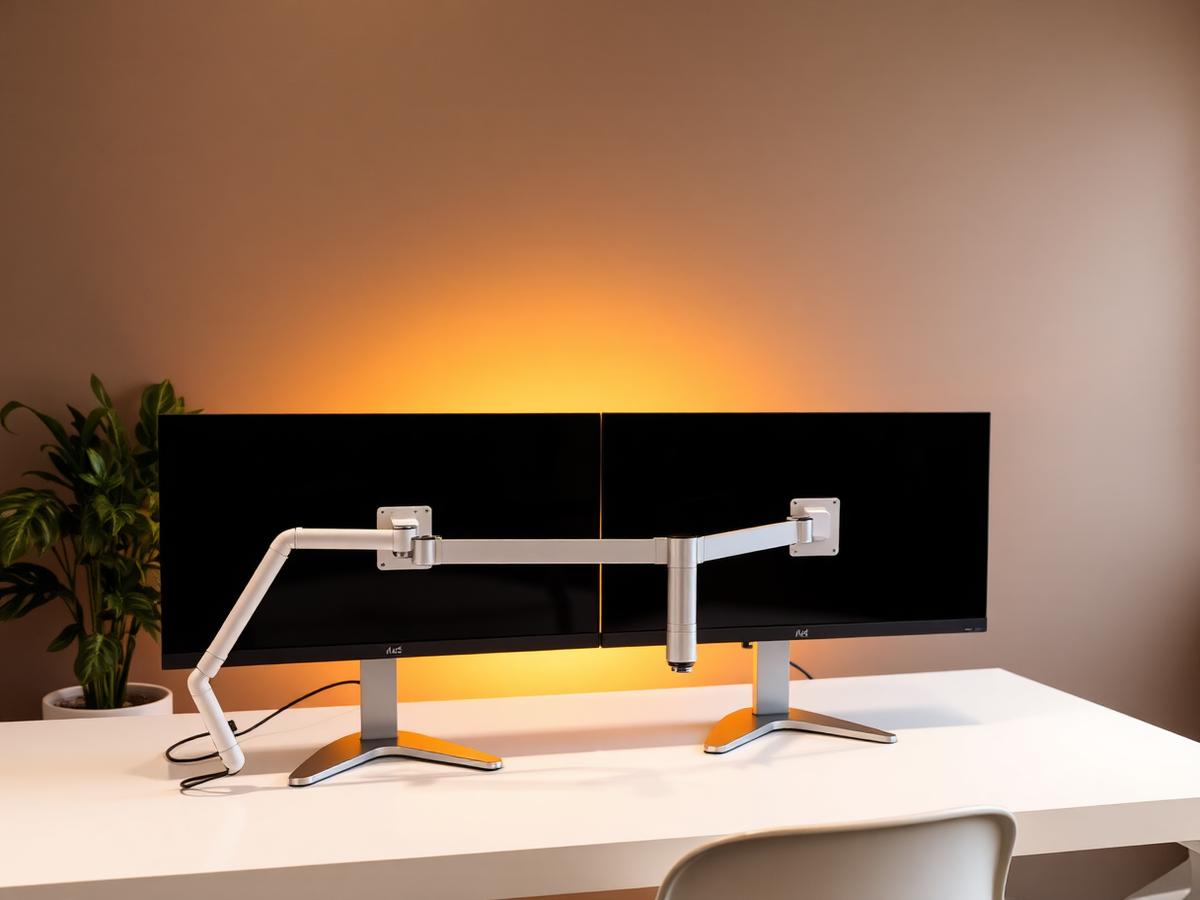
Monitor Arm vs. Monitor Stand: Which Is Better for Your Neck?
We compared both on flexibility, desk space, and price. The differences surprised us — and changed how we set up dual screens.
Read article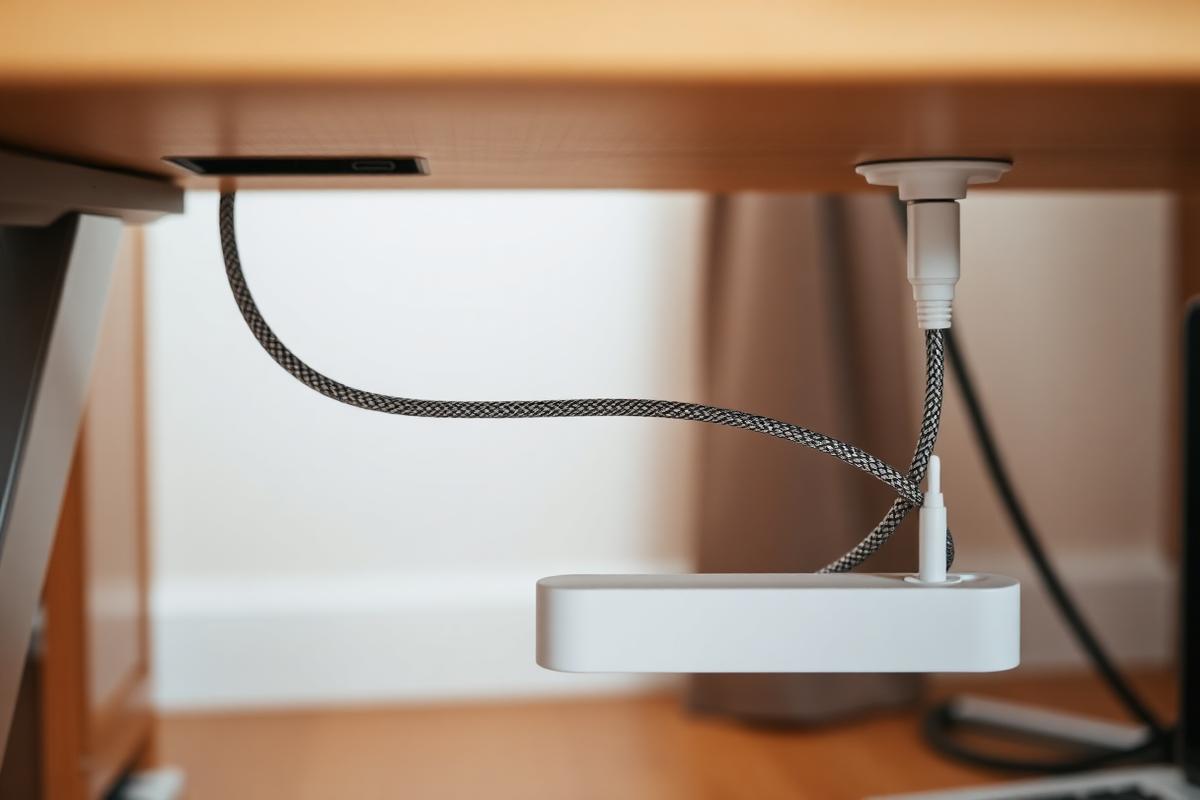
Cable Management Ideas for a Beautifully Clean Desk
Trays, sleeves, clips, and one under-desk trick that hides everything. Your Pinterest-ready desk starts underneath.
Read article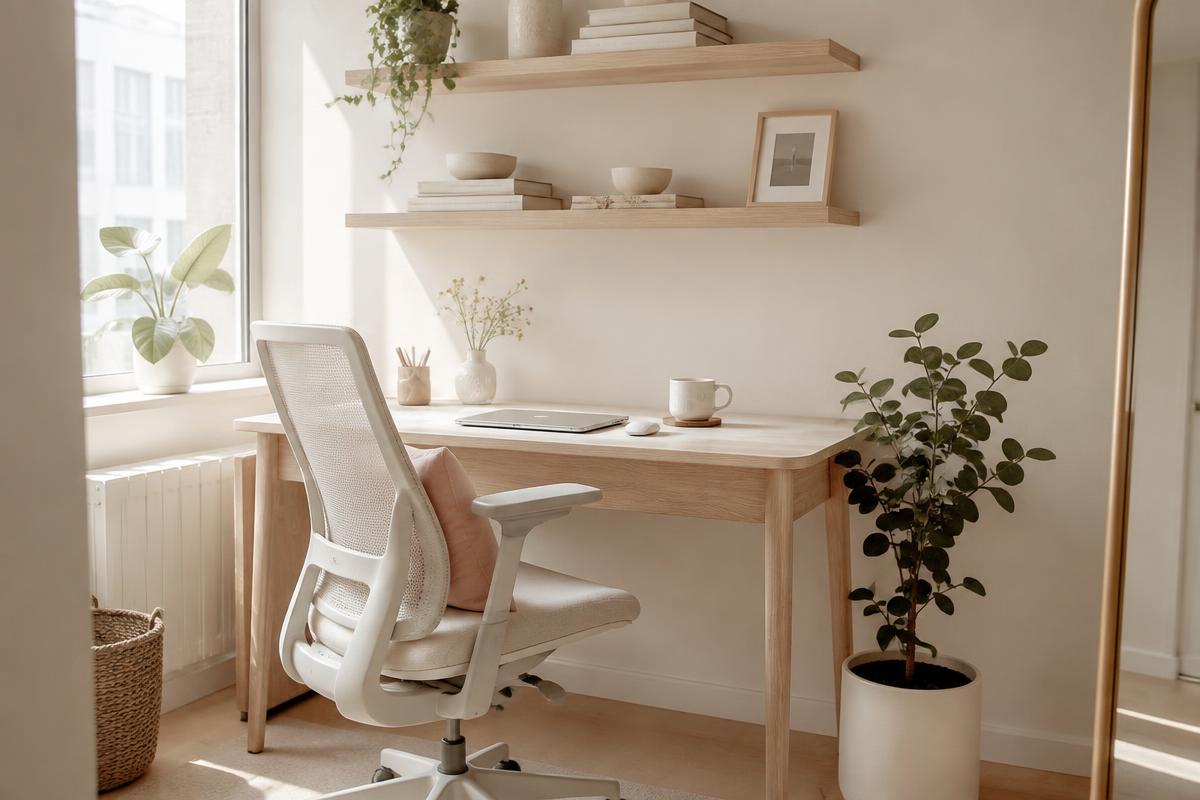
Office Chairs for Small Spaces: Comfortable, Chic & Ergonomic
Compact ergonomic chairs that support your back, tuck under a narrow desk, and still look beautiful in a living room or bedroom.
Read article